Navigating logs, summaries, and artifacts
When a check reports something, the result can land in one of four places: an inline annotation on the Files changed tab, an annotation box on the run's Summary page, a Markdown step summary, or a downloadable artifact. This page explains which is which and how to get to each one.
Finding the workflow run
From a pull request, open the Checks tab, or scroll to the merge box at the bottom of the Conversation tab and click Details next to a check. From the repository, open the Actions tab and click the run.
Reading the run summary
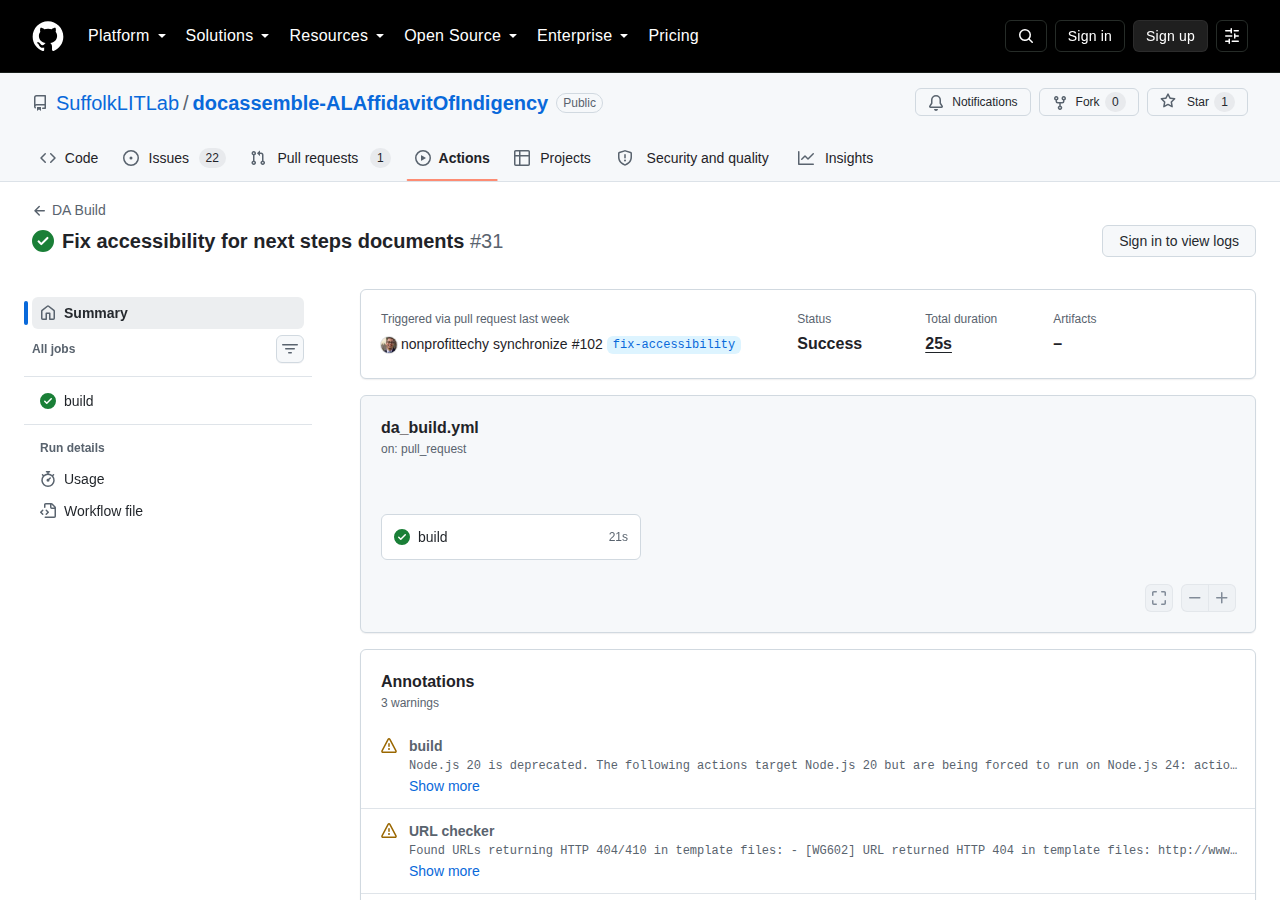
- Annotations, near the top, collect everything the run reported as a workflow
command:
dayamlcheckerfindings, the URL checker's warning block, and veraPDF failures. - Step summaries are rendered below: the Jinja2 validation table from
valid_jinja2, the per-file diffs fromword_diff, and the PDF accessibility section fromda_build. - Artifacts, at the very bottom, are the downloadable
.zipbundles.
GitHub keeps at most ten annotations per severity per run. dayamlchecker sorts its
findings so that the most severe ones survive that cut, and also prints the complete
report into the job log — so if the annotation list looks suspiciously short, the full
list is in the log for that step.
Annotations on the Files changed tab
da_build runs dayamlchecker with --format github, so findings become annotations
carrying a file, a line, and the diagnostic code as their title. A finding on a line you
changed appears inline on the Files changed tab, directly under the offending line.
Two kinds of finding cannot be anchored to a line, and appear in the run's annotation box instead:
- DOCX findings, because a Word document has no line numbers. They name the package
part instead (
word/document.xml) and quote nearby text. - URL checker warnings, which are collected into a single annotation titled
URL checker.
Word diffs
word_diff is not a pass/fail check. On any pull request that touches a .docx file it
produces a report, whether or not anything is wrong.
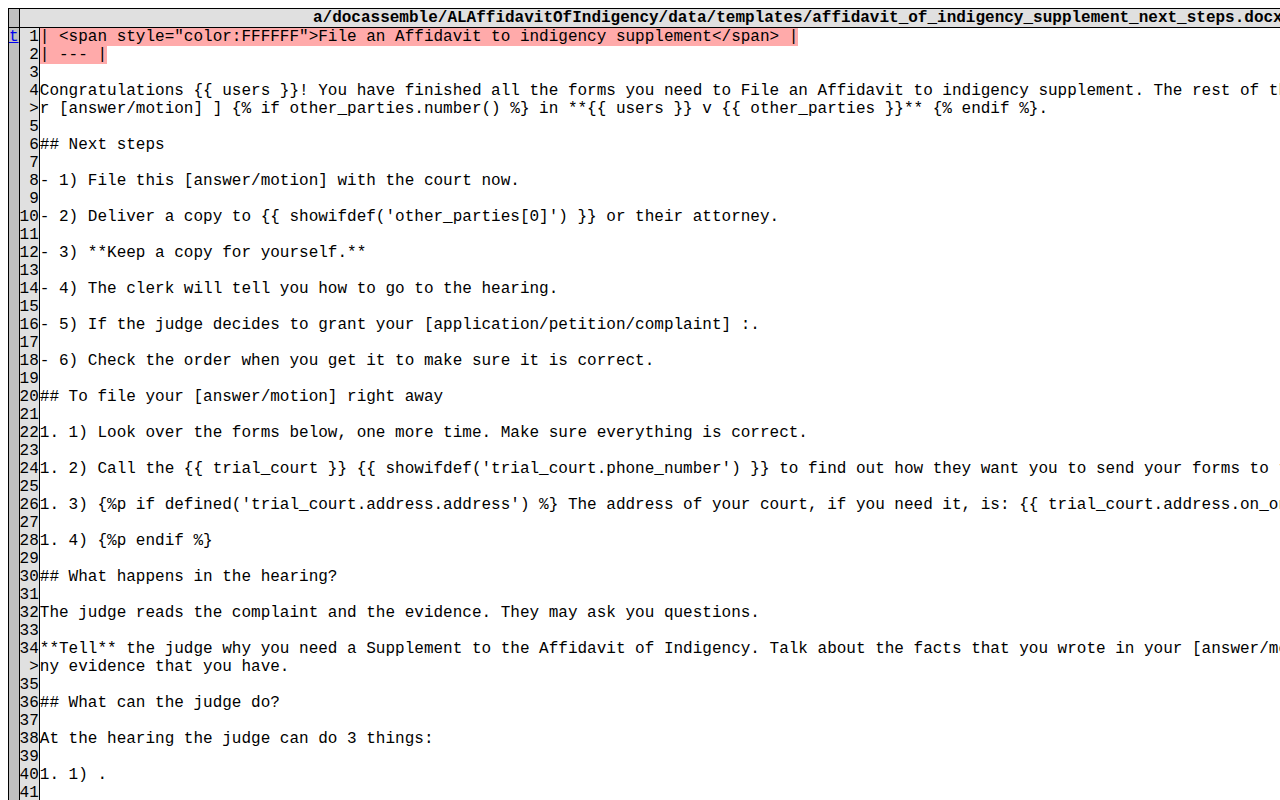
The unified diff in the step summary is usually enough. For the side-by-side view:
- Open the run, as above, and click Summary in the left sidebar — GitHub often opens the log viewer first.
- Scroll to Artifacts at the bottom and click
word-doc-diff(or whateverartifact_nameyou configured). GitHub downloads a.zip. - Unzip it and open
index.htmlin any browser, then pick a template from the list. Red or struck-through text was removed; green text was added.
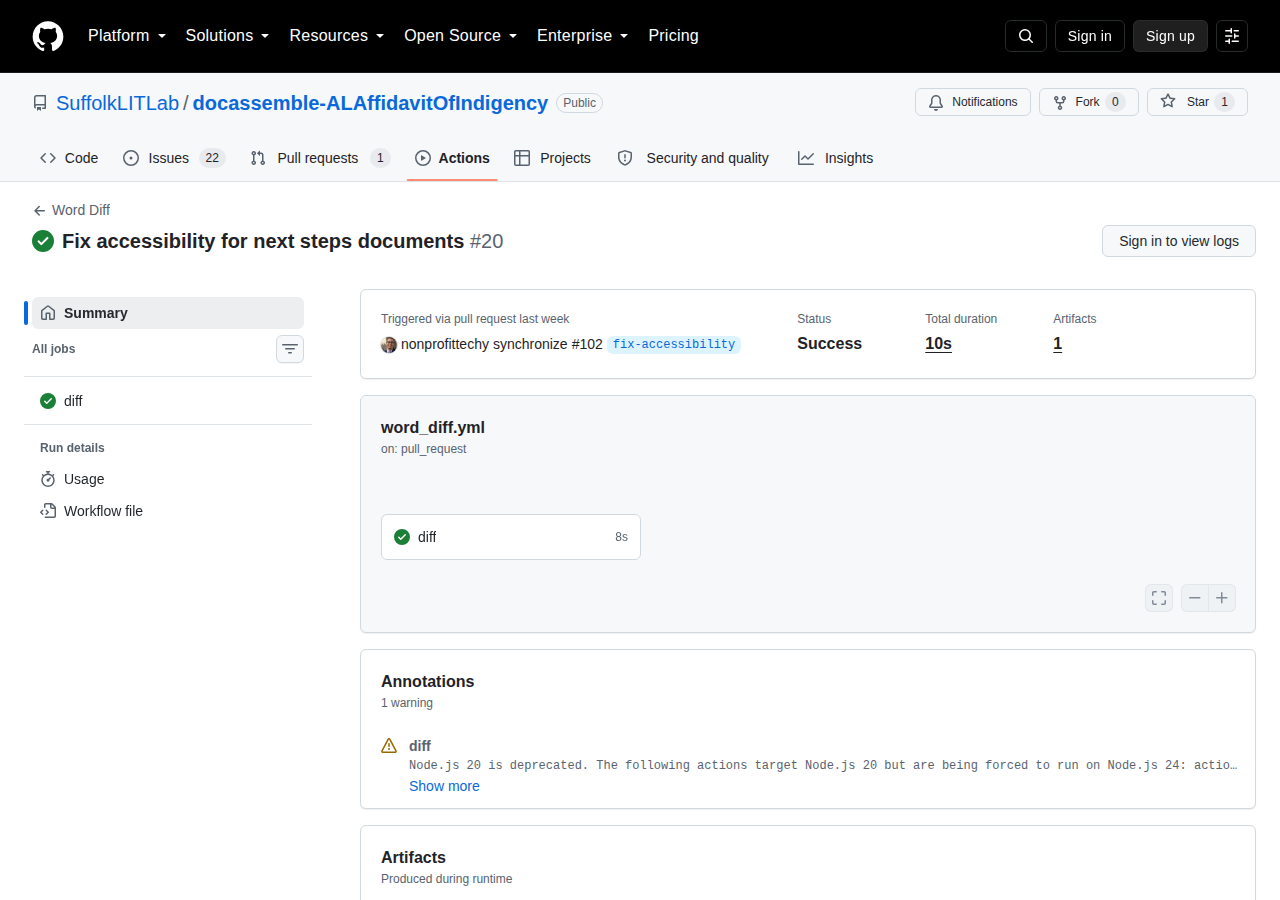
Because word_diff diffs the text including its Jinja2 tags, you can confirm a rename
from {{ user.name }} to {{ users[0].name.full() }} in the browser, with no copy of
Microsoft Word involved.
Searching the job logs
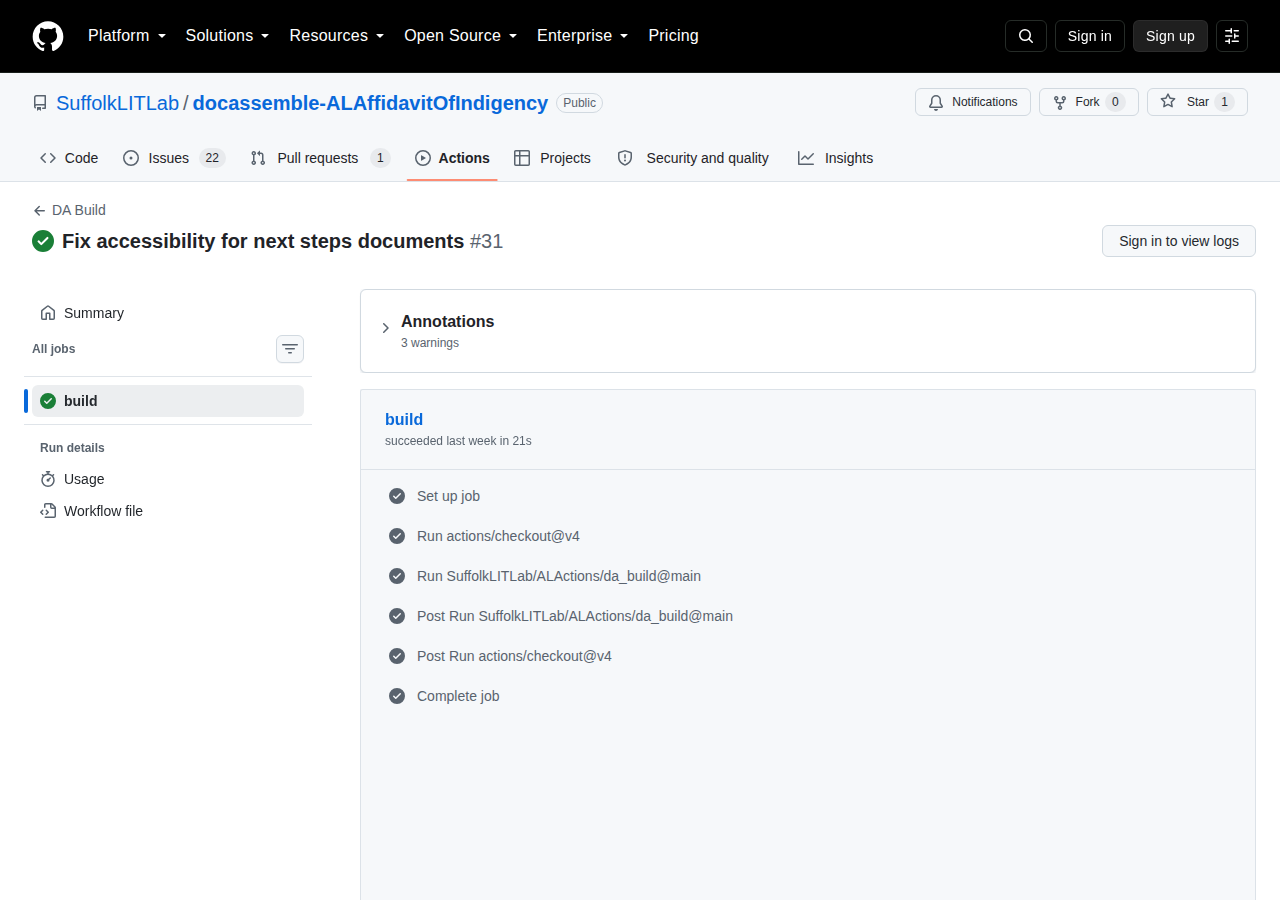
Click a job in the left sidebar, then click a step header — Run YAML and template document checker, Check URLs in question/template files, or Check PDF accessibility with veraPDF — to expand it. The search box at the top right of the log pane searches
the whole job:
ERRORorWARNfor severity, or[EAand[WAfor accessibility findings specifically.[EGfor interview structure and syntax findings.HTTPfor URL checker results.veraPDFfor PDF/UA-1 rule failures.
Common failures
A YAML error (EG102, EG101) — the dayamlchecker step fails on a parse error or
a duplicate key. The annotation names the line; fix the indentation, quoting, or
duplicate.
A skipped heading (EA506) — a screen jumps from ## to ####. Use the next level
down instead. If you wanted smaller text rather than a lower level, keep the level and
style it: <h3 class="h5">Heading text</h3>.
A broken URL (EG602) — a link in a question file returned an error. Fix the link,
or, if the destination blocks CI or rate-limits it, add it to ignore-urls in your
workflow. Broken links in data/templates are warnings rather than failures.
A PDF/UA-1 failure — a PDF template is not properly tagged. Open it in Acrobat Pro,
run the accessibility check, and fix the tagging. If the form is flattened before users
see it, leave pdf-strict at "false" so tab-order rules do not count against you.
A DOCX accessibility finding (WA5…) — a warning by default, so it will not fail the
build. Work through them with the DOCX accessibility
rules.