Configuring document bundles and templates
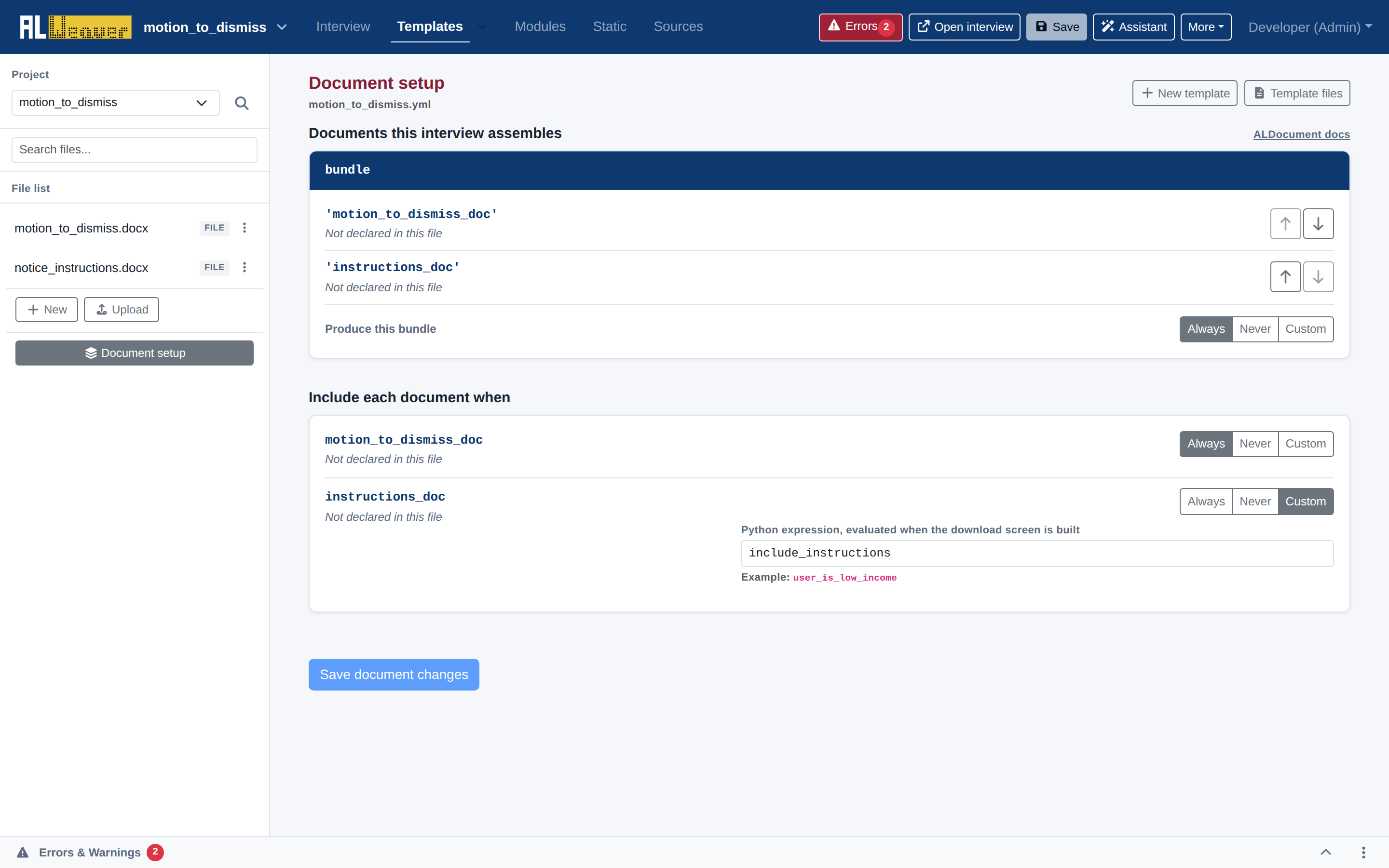
In the Templates view of the Weaver, clicking Document setup opens the document assembly manager. This interface controls which templates are compiled, how multiple documents are bundled together, and the conditional rules that govern when specific documents are generated.
Working with template files
You can upload both DOCX and PDF templates into your project:
- Click Upload in the left sidebar of the Templates tab to add a new labeled DOCX or PDF file.
- The Weaver analyzes the template's Jinja2 tags or PDF form fields and registers them in the project.
Understanding document bundles (ALDocumentBundle)
An ALDocumentBundle combines one or more ALDocument items into a unified downloadable packet (such as a single PDF containing a Motion, an Affidavit of Indigency, and a Certificate of Service):
objects:
  - motion_to_dismiss_doc: ALDocument.using(title="Motion to Dismiss", filename="motion_to_dismiss.docx", enabled=True)
  - instructions_doc: ALDocument.using(title="Filing Instructions", filename="instructions.docx", enabled=include_instructions)
  - bundle: ALDocumentBundle.using(title="Main Filing Package", elements=['motion_to_dismiss_doc', 'instructions_doc'], enabled=True)
Document inclusion rules
For each document in your bundle, you can configure when it should be compiled:
- Always: The document is always generated and included in the final download package.
- Never: The document is excluded by default (useful for draft or reference templates).
- Custom (Condition): Enter a Python condition (e.g.
include_instructionsoruser_has_fee_waiver). The document will only be assembled when this expression evaluates toTrue.
Reordering documents in the bundle
Use the up () and down () buttons next to each document entry to change the order in which documents are assembled and merged into the final packet.
Next steps
- Add a summary review screen for user verification in Review screen synchronization.
- Check your interview for errors in Diagnostics, refactoring, and YAML code view.