Designing question screens and fields
Every screen presented to an interview user corresponds to a question block in Docassemble. The Weaver lets you configure every aspect of these screens visually without writing YAML syntax manually.
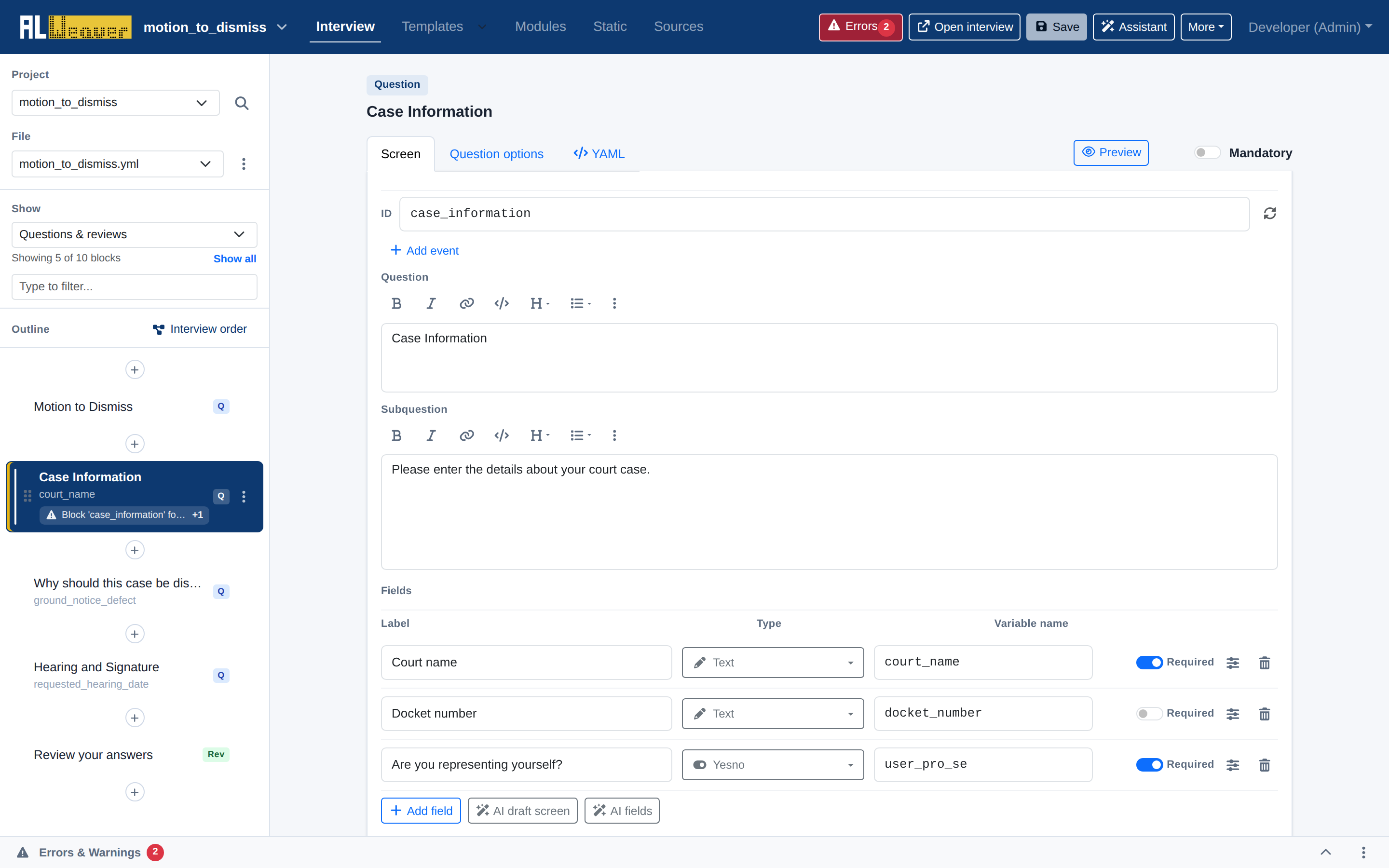
Screen details and instructions
When editing a question block in the canvas, the top section defines the screen identity and prompt:
- Block ID: Specify a unique identifier for the screen (e.g.
case_information). Standard AssemblyLine conventions use descriptive, snake_case identifiers. - Question title: Enter the primary heading displayed at the top of the screen.
- Subquestion: Provide user-facing instructions or guidance using the rich formatting toolbar (bold, italics, links, lists, code spans, and headings).
Configuring form fields
Under the Fields section, each row represents an interactive form control:
| Setting | Description |
|---|---|
| Label | The user-visible prompt displayed beside or above the input field. |
| Type | The field data type (see table below). |
| Variable name | The Python variable where the user's response is stored (e.g., court_name, user_pro_se). |
| Required | Toggle switch to indicate whether the user must complete the field before continuing. |
| Field Options () | Expand to set default (a pre-filled value), hint (short placeholder-style text shown inside the field), help (expandable help text), under text (a caption below the field), and show if / hide if conditional visibility expressions. |
Supported field data types
The Weaver's field type picker exposes Docassemble's field datatypes, grouped by category. Common ones include:
- text / area: Single-line or multiline text input.
- yesno, yesnoradio, noyes: Boolean yes/no questions in different layouts.
- radio: Single selection from a list of mutually exclusive choices.
- dropdown / combobox / multiselect: Dropdown selectors for lists of choices.
- checkboxes: Multiple selections from a list.
- date / datetime / time: Date and time pickers.
- number / integer / currency: Numeric and currency input.
- email: Email address field with format validation.
- file / files / camera: File upload and camera capture controls.
- note / html: Display-only content embedded within the fields list.
There is no signature field type in this picker: AssemblyLine collects signatures through its own basic_questions_signature_flow, which the Weaver's generated interview order already calls before the download screen when a project needs one.
Conditional field visibility (show if)
You can conditionally show or hide form fields based on earlier answers by clicking the Field Options icon () and adding a show if (or hide if) expression:
# Only show this field if the user answered 'Yes' to representing themselves
user_pro_se == True

# Only show if a previous checkbox was selected
has_children and number_of_children > 0
Individual field types (name, address, gender, language)
For a field collecting information about an individual person or party, choose one of the ALIndividual helper types from the Assembly Line person fields group in the Type picker instead of building each input by hand:
- name_fields — Generates first name, middle name, last name, and suffix inputs. Adds a
- code: users[0].name_fields()entry (or the equivalent person) to the block'sfields:list. - address_fields — Generates street address, unit/apartment, city, state, and zip code inputs.
- gender_fields — Inserts standard gender identity options.
- pronoun_fields — Inserts pronoun selection options.
- language_fields — Asks the person's primary language.
Each of these has its own optional parameters (e.g. show_suffix, required, show_if) that appear once you select it.
AI drafting helpers
When starting from a new set of labeled variables, you can speed up screen authoring using the built-in AI helpers:
- AI draft screen: Analyzes the active screen's variables and drafts an appropriate plain-language title, explanatory subquestion, and field layout.
- AI fields: Suggests sensible field labels, data types, and default values matching legal plain-language standards.
Next steps
- Learn how to preview your screens in real time across desktop and mobile.
- Add pre-built people questions from the Question library.
- Sequence the flow of your screens in the Interview order builder.