Live screen previews
To verify how your question screens will look and behave for end users, click the Preview button () in the upper right corner of the block editor.
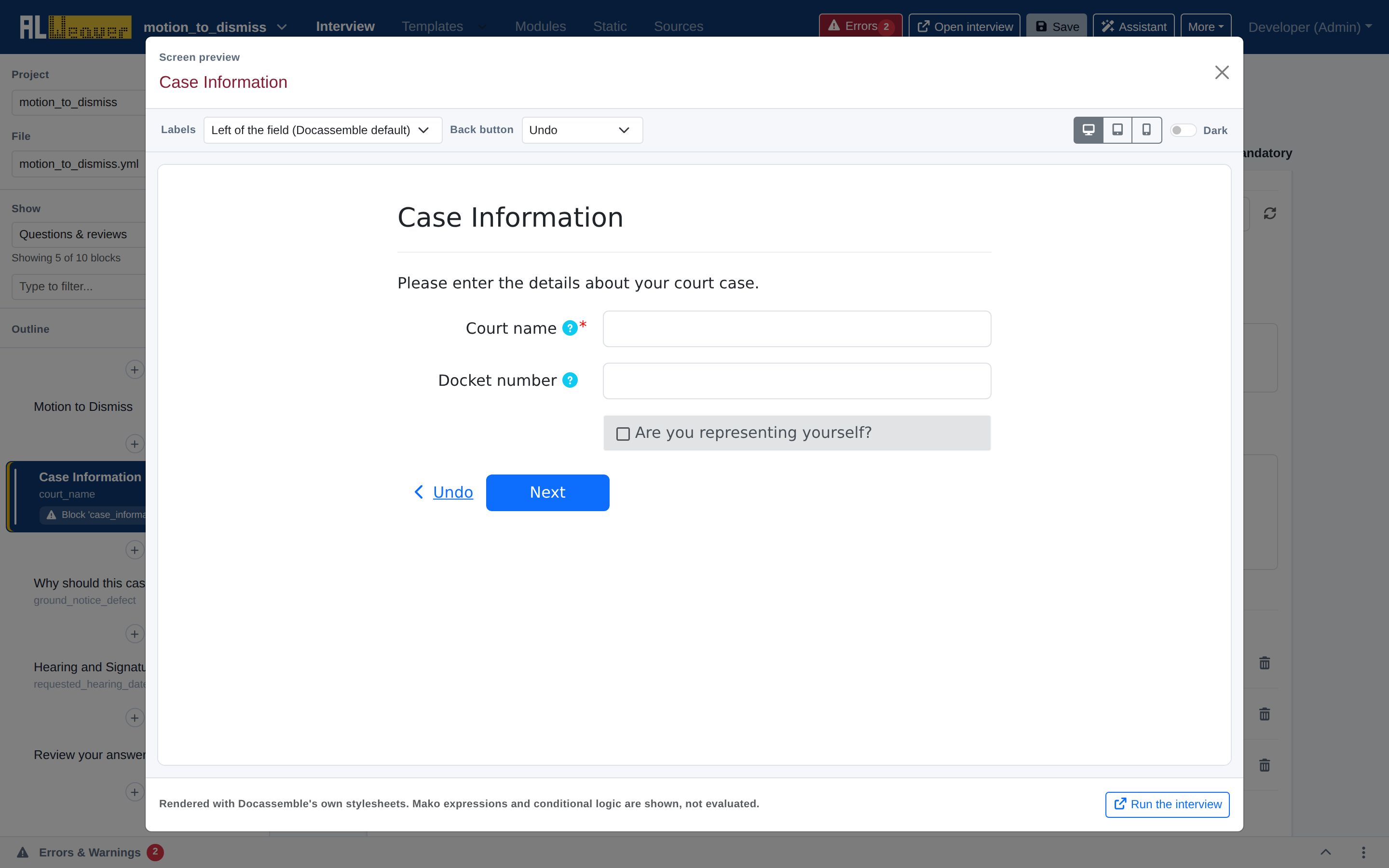
Real-time rendering with Docassemble stylesheets
The Weaver renders screen previews using Docassemble's native stylesheets and JavaScript widgets, giving you a high-fidelity view of the actual layout, typography, buttons, and form inputs as they will appear when published. Mako expressions and conditional logic are shown as written, not evaluated — for behavior that depends on prior answers, use Run the interview instead.
Responsive viewports
Users will access your interview from a wide variety of devices. The preview modal includes one-click viewport simulation:
- Desktop Viewport (): Standard widescreen layout for laptops and desktop monitors.
- Tablet Viewport (): Medium layout matching iPad and tablet screen dimensions.
- Phone Viewport (): Compact mobile layout to test touch targets, vertical spacing, and responsive wrapping.
Visual styling and navigation toggles
- Labels: Choose Left of the field (Docassemble's default), Above the field, or Floating to see how field prompts align.
- Back button: Preview the screen with the back button labeled Undo (AssemblyLine's default) or Back.
- Dark: Toggle a dark-mode simulation to verify contrast, icon visibility, and readable color palettes.
Running the live interview
While the preview modal is great for rapidly testing individual screen layouts, you can launch the entire interactive interview at any time:
- Click Run the interview from within the preview modal, or click Open interview from the top navigation bar.
- Docassemble will launch the interview in a new browser tab, allowing you to walk through the interview end-to-end, test dynamic logic, and generate completed documents.
Next steps
- Insert standardized people questions using the Question library.
- Organize your interview screens and loops in the Interview order builder.